 Back
BackDescriptive Statistics and Measures of Association: Study Notes for Statistics for Business
Study Guide - Smart Notes
 Tailored notes based on your materials, expanded with key definitions, examples, and context.
Descriptive Statistics
Introduction to Statistics
Statistics is the science of uncertainty and the technology of extracting information from data. It involves collecting, organizing, analyzing, interpreting, and presenting data. Descriptive statistics refers to methods of describing and summarizing data using tabular, visual, and quantitative techniques.
Population: The entire set of data of interest. Descriptive measures are called parameters (e.g., population mean μ, population standard deviation σ).
Sample: A representative part of the population. Descriptive measures are called statistics (e.g., sample mean x̄, sample standard deviation s).
Statistical Notation: Subscripted variables (e.g., xi) represent individual observations. N is the number of items in a population, n is the number of observations in a sample. The Greek capital sigma (Σ) denotes summation.
Measures of Location
Measures of location describe the central tendency of a data set. The most common are the mean, median, and mode.
Arithmetic Mean
Population Mean:
Sample Mean:
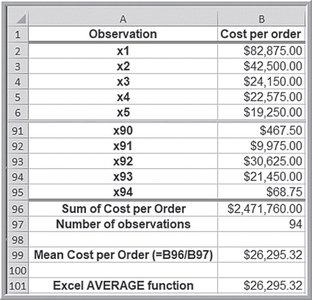
Excel Function: =AVERAGE(data range)
Outliers: The mean is sensitive to outliers.
Example: Mean cost per order calculated as
Median
Definition: The median is the middle value when data are arranged from least to greatest.
Odd n: Median is the middle value.
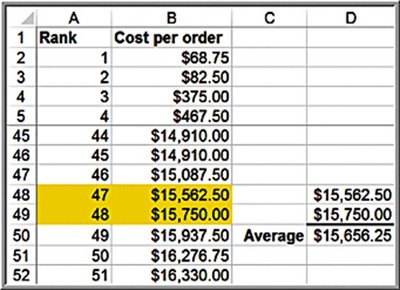
Even n: Median is the mean of the two middle values.
Excel Function: =MEDIAN(data range)
Robustness: The median is not affected by outliers.
Example: For 90 observations, median is the average of the 47th and 48th values:
Mode
Definition: The mode is the value that occurs most frequently in the data set.
Usefulness: Most useful for data sets with a small number of unique values.
Excel Function: =MODE.SNGL(data range) or =MODE.MULT(data range) for multiple modes.
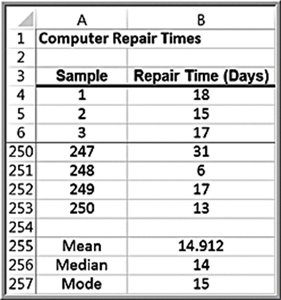
Example: Computer repair times: mode is 15 days.
Measures of Dispersion
Measures of dispersion describe the spread or variability of the data.
Range
Definition: The difference between the maximum and minimum values.
Formula:
Excel Function: =MAX(data range) - MIN(data range)
Example:
Interquartile Range (IQR)
Definition: The difference between the third quartile (Q3) and the first quartile (Q1).
Formula:
Example:
Variance
Population Variance:
Sample Variance:
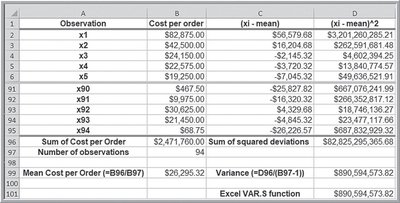
Excel Functions: =VAR.P(data range) (population), =VAR.S(data range) (sample)
Example: Sample variance for cost per order:
Standard Deviation
Definition: The square root of the variance.
Population Standard Deviation:
Sample Standard Deviation:
Excel Functions: =STDEV.P(data range) (population), =STDEV.S(data range) (sample)
Example: Standard deviation for cost per order:
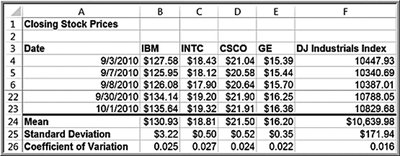
Coefficient of Variation (CV)
Definition: The ratio of the standard deviation to the mean, often expressed as a percentage.
Formula:
Interpretation: Provides a relative measure of risk to return, useful in financial analysis.
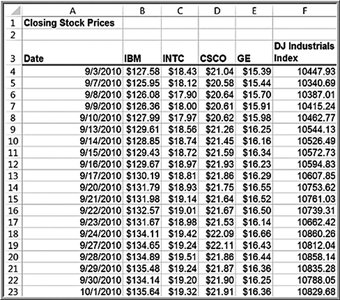
Example: Intel (INTC) CV =
Measures of Shape
Measures of shape describe the distribution of data, including skewness and kurtosis.
Skewness
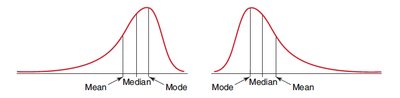
Definition: Skewness describes the lack of symmetry in a distribution.
Positive Skew: Distribution tails off to the right.
Negative Skew: Distribution tails off to the left.
Coefficient of Skewness:
Excel Function: =SKEW(data range)
Kurtosis
Definition: Kurtosis refers to the peakedness or flatness of a distribution.
Coefficient of Kurtosis:
Excel Function: =KURT(data range) (computes excess kurtosis, CK - 3)
Interpretation: CK < 3: flat, CK > 3: peaked
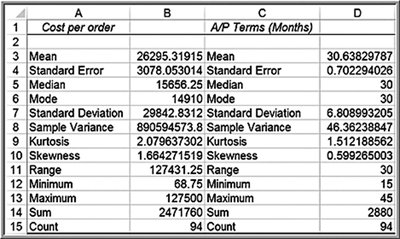
Excel Descriptive Statistics Tool
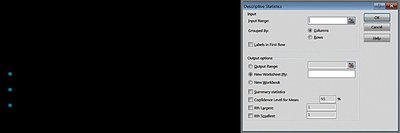
Purpose: Provides a summary of numerical statistical measures for sample data.
Usage: Data must be in a single row or column. Tool treats each row or column as a separate data set.
Descriptive Statistics for Categorical Data
Proportion
Definition: The proportion, denoted by p, is the fraction of data with a certain characteristic.
Formula:
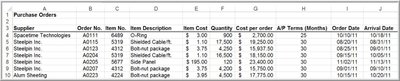
Example: Proportion of orders placed by Spacetime Technologies:
Measures of Association
Covariance
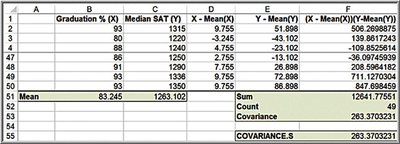
Covariance measures the linear association between two variables, X and Y. The interpretation is tied to the unit of measure for the data.
Population Covariance:
Sample Covariance:
Excel Functions: =COVARIANCE.P(array1, array2) (population), =COVARIANCE.S(array1, array2) (sample)
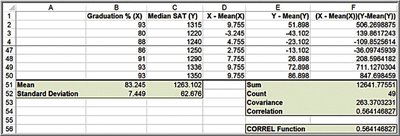
Example: Covariance between graduation % and median SAT: 283.37
Correlation
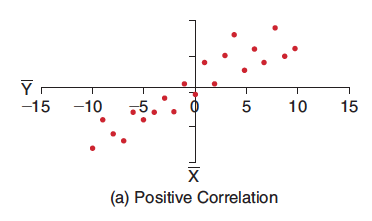
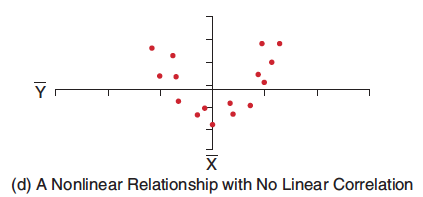
Correlation measures the linear relationship between two variables, X and Y, independent of units. The correlation coefficient is scaled between -1 and 1.
Correlation Coefficient (Population):
Correlation Coefficient (Sample):
Excel Function: =CORREL(array1, array2)
Interpretation:
r = 1: Perfect positive correlation
r = -1: Perfect negative correlation
r = 0: No linear relationship
Example: Correlation between graduation % and median SAT: 0.584
Excel Correlation Tool
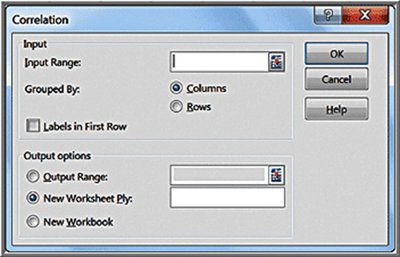
Purpose: Computes correlation coefficients between all pairs of variables in the input range.
Usage: Input range must be in contiguous columns.

Additional info: These notes cover the foundational concepts of descriptive statistics and measures of association, including practical examples and Excel functions, suitable for Statistics for Business students.
